Upgrading your PC's hardware can be easy, but there's a right way and a wrong way to do each task. Here are five upgrades that most users do a half-baked job on, and tips to help your upgrade go flawlessly.
Whether you're an experienced hand or a technophobic novice, chances are good that your last PC upgrade didn't exactly follow the industry's best practices. Many newbs flub upgrades through inexperience, but it's just as common to see a hardcore system builder throw caution to the wind while swapping out a CPU, snapping in some RAM, or swapping out a hard drive or graphics card. Whichever camp you fall into, cutting corners as you work on your computer puts it at risk of sustaining damage to sensitive components. In the worst case, you might even destroy the entire machine.
Adding RAM, swapping out a processor, or installing a new hard drive can be very simple tasks. But following basic precautions--however paranoid or myopic they might seem--can safeguard your system and save you money, time, and frustration. And taking a few extra minutes (or spending a few extra dollars) to route cables well and to ensure that your power supply is up to the greater demands of new components can make your upgraded PC perform better.
The most common error--and this goes for every type of component upgrade--consists of failing to use static protection. Novices typically don't even realize that static electricity in their body can discharge into a PC's components with just a light touch, potentially damaging sensitive circuitry.
Old hats, on the other hand, have the opposite problem: Years of handling hard drives, memory modules, graphics cards, and CPUs desensitizes us to the very real hazard posed by static electricity, leaving us vulnerable to a problem we know perfectly well how to avoid. So come on, folks. Wear an antistatic bracelet whenever you work on your components.
RAM Upgrades
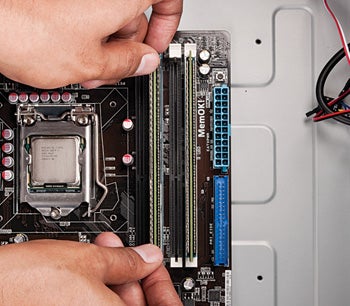
The number one mistake that novices make with RAM upgrades is to buy the wrong kind of memory at the outset. Buying PC components has more and more become a self-service activity, and fewer safeguards are in place to prevent people from choosing the wrong package. So take the time to find out exactly what kind of modules your system takes, including the bus speed (in MHz).
Memory manufacturers produce RAM with various pin configurations, data rates, and bus speeds. If your laptop calls for 667MHz PC2-5300 modules, but the store has only 1333MHz PC3-10600 for sale, resist the temptation to try the flavor that's available. It won't work, you could damage your PC trying it, and the store probably won't give you a full refund for the opened modules.
The biggest RAM upgrade mistake that experienced users make is to neglect to check the capacity limits of their machine. Some systems--especially netbooks and ultralights (and a lot of Macs)--can accept only a certain amount of RAM. So despite the fact that your local tech store sells 4GB modules that fit in your machine, you could pack them home only to find that your two-year-old laptop takes only 2GB modules. The advice here is simple: Check the manufacturer's documentation before you buy. Read More
