CNET - Windows has come a long way over the decades from the now
antiquated-looking boxes of Windows 1.0 to the layers upon layers of
desktops, start screens, charms, tiles, and whatever that bar on the
left is in Windows 8. More
Showing posts with label windows 8. Show all posts
Tuesday, June 4, 2013
The entire history of Windows in one video
Watch the entire string of upgrades from Windows 1.0 to Windows 8, as well as some gameplay from Reversi and Doom, in just over an hour.
Labels:
entire history,
microsoft,
one video,
tech history,
tech news,
video,
windows,
windows 1.0,
windows 8
Thursday, March 14, 2013
Getting started with Twitter for Windows 8
The new Twitter for Windows 8 app can be downloaded from
the Windows Store.
(Credit: Screenshot by Ed Rhee/CNET)
-----
(Credit: Screenshot by Ed Rhee/CNET)
-----
CNET - The new Twitter app for Windows 8 has some familiar features as well as a
few new ones that are specific to Windows 8. We'll show you how to get
started with the new app.
-----
-----
Twitter released its first-ever Windows client yesterday for Windows 8.
The client supports the usual array of Twitter features, but also
includes a few that are unique to Windows 8. Here's how to get started
with Twitter for Windows 8:
-----
-----
Setup
-----
Download and install the Windows 8 Twitter app from the Windows Store. The first time you launch the app, you'll need to log in with your Twitter username and password to authorize the app. The second time you launch the app, you may be prompted to allow Twitter to run the in background. If you want show quick status notifications on the lock screen, you should allow it to run in the background. You can always go back to PC settings and change it later if you change your mind.
-----
Download and install the Windows 8 Twitter app from the Windows Store. The first time you launch the app, you'll need to log in with your Twitter username and password to authorize the app. The second time you launch the app, you may be prompted to allow Twitter to run the in background. If you want show quick status notifications on the lock screen, you should allow it to run in the background. You can always go back to PC settings and change it later if you change your mind.
Labels:
getting started,
social media,
social network,
tech news,
twitter,
windows 8
Saturday, January 5, 2013
HP Envy x2: Tablet and laptop meet again on a Windows 8 hybrid
(Credit:
Sarah Tew/CBS Interactive)
CNET - Take a tablet; add a keyboard. Turn it into a laptop.
Do it with full Windows 8. This is the dream of the HP Envy x2, and the
dream, it seems, of Windows 8 in general. Break down the barrier between
tablets and PCs. Create progressive computing. The future is now. Well,
the future was also over four months ago, when HP first started showing
off the Envy x2 in public, including at CNET.
We marveled then that the device was well-built, comfortable to hold, and, when you think about it, pretty shockingly practical. After all, theoretically, this is the best of both worlds: a laptop and a tablet in one. This is what I dreamed about going back to the teased-but-never-real Lenovo U1 Hybrid three years ago.
The Envy x2 is finally available, and we've got our review unit here at CNET. But, can it rise above our previous concerns? As Eric Franklin said back in August, "A lot of the Envy x2's success will rest on what Microsoft does with Surface, especially its price. Right now I can't see the Envy x2 costing less than $1,000, which would make it a direct competitor to the Macbook Air. From what I've seen it would be a worthy competitor, but is anyone ready to pay more than $1,000 for a tablet?"
Slide a little tab, and the whole upper lid does, indeed, undock and becomes its own multi-touch tablet. But, at $849, it's more expensive than most ultraportable laptops and tablets...and far more expensive than those little, non-touch, non-detachable-screened 11-inchers of old. You're paying for style, and also for that clever split-function feature. And the concern about the x2 versus the MacBook Air, or x2 versus the Surface Pro, still stands.
Style vs. substance
Depending on your perspective, you’ll either love what HP's trying to do with the Envy x2, or you'll hate it. But, it’s hardly the only innovator: detachable-screen laptop/tablet hybrids have been kicking around in a similar form across several manufacturers, including Acer, Lenovo, and Samsung. It's an official mini-trend in Windows 8 launch PCs.
More
We marveled then that the device was well-built, comfortable to hold, and, when you think about it, pretty shockingly practical. After all, theoretically, this is the best of both worlds: a laptop and a tablet in one. This is what I dreamed about going back to the teased-but-never-real Lenovo U1 Hybrid three years ago.
The Envy x2 is finally available, and we've got our review unit here at CNET. But, can it rise above our previous concerns? As Eric Franklin said back in August, "A lot of the Envy x2's success will rest on what Microsoft does with Surface, especially its price. Right now I can't see the Envy x2 costing less than $1,000, which would make it a direct competitor to the Macbook Air. From what I've seen it would be a worthy competitor, but is anyone ready to pay more than $1,000 for a tablet?"
Slide a little tab, and the whole upper lid does, indeed, undock and becomes its own multi-touch tablet. But, at $849, it's more expensive than most ultraportable laptops and tablets...and far more expensive than those little, non-touch, non-detachable-screened 11-inchers of old. You're paying for style, and also for that clever split-function feature. And the concern about the x2 versus the MacBook Air, or x2 versus the Surface Pro, still stands.
(Credit:
Sarah Tew/CNET)
Depending on your perspective, you’ll either love what HP's trying to do with the Envy x2, or you'll hate it. But, it’s hardly the only innovator: detachable-screen laptop/tablet hybrids have been kicking around in a similar form across several manufacturers, including Acer, Lenovo, and Samsung. It's an official mini-trend in Windows 8 launch PCs.
More
Monday, December 3, 2012
How to test-drive Windows 8 for free in VirtualBox

Fortunately, there's an easy, hassle-free way to test-drive Windows 8. Using a program called VirtualBox and the evaluation version of Windows 8 Enterprise, you can try out the new OS for free, without disturbing your current operating system. Read on—we’ll show you how.
Important considerations
For this project, you'll need to use the evaluation version of Windows 8 Enterprise, which you can download directly from Microsoft at the MSDN Evaluation Center website. There are a few things you should know about the evaluation edition, but you might want to start the download now—at 3.4GB, it will take a while.Wording on the download page identifies it as “Windows 8 evaluation for developers,” but anyone who has a Microsoft account (such as a free Hotmail or Live account) can download the software and try it out. The download link is at the very bottom of the page. Simply select the 32- or 64-bit version of the operating system, log in, and fill out a brief questionnaire. Just like that, you’re downloading Windows 8!
More
Labels:
free,
microsoft,
tech news,
test drive,
virtualbox,
windows 8
Tuesday, October 9, 2012
Acer Iconia W510 preview: as Acer moves into the Windows 8 era, it returns to its netbook roots

More
Labels:
acer,
acer iconia w510,
computers,
netbook roots,
preview,
tech news,
windows 8
Saturday, September 29, 2012
Six Windows 8 tablets: Can one be your next travel PC?
A new tablet PC era
PCWorld - On Thursday, Intel's hardware partners showed off their mid-range Windows 8 hybrid devices at a Clover Trail coming-out party. Today we reveal the hardware in all its photographic splendor.Each tablet features Intel's Z2760 Atom processor (aka Clover Trail), a dual-core, four-thread system-on-chip running up to 1.8GHz. Clover Trail devices won't pack the performance oomph of Ultrabooks, laptops and hybrids running Core-caliber processors, but the products you see in this gallery should deliver excellent battery life—in excess of 10 hours. In theory, at least.
Perhaps more importantly, Clover Trail devices could emerge as winning travel PCs: thin, light tablets married to accompanying keyboard docks. Put everything together, and you might be able to leave your iPad and Ultrabook at home, and simply take one of these hybrids on the road.
Acer Iconia W510
The tablet connects to its dock with a seemingly sturdy click, but only extended PCWorld testing will prove out durability. The tablet includes speakers, a SIM slot, and microSD, microUSB and HDMI ports. The dock adds a full-size USB 2.0 port. The industrial design didn’t wow us compared to other tablets we saw at the event, but, who knows, some people may appreciate the cheery, bright styling.
See the rest!
Tuesday, August 21, 2012
Create a great personalized home page in Chrome with ANTP
The new tab page in Chrome is nice, but it could be a lot better -- and
more useful. ANTP aims to create a Windows 8-style tab that makes it
easy to launch apps and services.
There are many ways to get started when you fire up your computer, but the Chrome browser makes it easy to stick with one. Most of us use a browser for daily business anyway, and the default Chrome new tab page gives quite a few options for launching useful pages and apps.
ANTP (short for Awesome New Tab Page) is a Chrome extension offering a Windows 8-style launch page that is lovely and handy. Here's how to use it:
There are many ways to get started when you fire up your computer, but the Chrome browser makes it easy to stick with one. Most of us use a browser for daily business anyway, and the default Chrome new tab page gives quite a few options for launching useful pages and apps.
ANTP (short for Awesome New Tab Page) is a Chrome extension offering a Windows 8-style launch page that is lovely and handy. Here's how to use it:
- Install the ANTP extension here.
- Open
a new tab in Chrome. It's fruitful to check out the tour in the upper
left of the screen, but I'll cover the basics in this post.
Step 2: Check out your new default new tab page.(Credit: Rob Lightner/CNET) - Click the gear icon in the upper-left sidebar to open the configuration screen. This mostly just lets you change the appearance of ANTP, but also lets you choose your country for the default Amazon shortcut and reset all prior changes.
Labels:
antp,
chrome,
extension,
new tab page,
personalized home page,
tech news,
windows 8
Friday, May 18, 2012
Top 20 Windows 8 Features
As with any technological overhaul, Windows 8 has been met with
passionate and mixed response among those who have had a chance to
download and test run the Consumer Preview of Microsoft's flagship OS. The company's bold new direction for Windows, with its dual interface and emphasis on tablet functionality, certainly means changes ahead for IT departments when Windows officially ships.
But for users there is a lot to like about the forthcoming OS. Here is a
look at the 20 features that Windows 8 users will appreciate the most.
1. Metro Start Screen
Metro Start is Windows 8's new location for launching applications.
It includes updating live tiles that you can regroup as you desire,
increasing the flexibility of your Windows 8 experience.
2. Traditional Desktop
For those who prefer the traditional desktop experience, this still
exists in Windows 8, which offers a traditional desktop view akin to
that of Windows 7. Applications that run in Windows 7 will also run on
Windows 8's traditional desktop.
Would you recommend this sl
3. Metro Apps
Part of the new Metro UI, Metro apps are full screen and easy to install, offering an immersive new way to work with Windows.
More
More
Thursday, March 15, 2012
Ex-Microsoft Employee Launches ‘Fixing Windows 8′ Campaign

Not everyone is happy with Windows 8′s sweeping design changes, including one former Microsoft employee who thinks the company can do better.
The former employee has launched a website called “Fixing Windows 8” with suggestions on how Microsoft could improve the user interface, particularly for a mouse and keyboard. According to Tom’s Hardware, the website’s founder is Mike Bibik, a user interface designer.
“During the MWC keynote, Microsoft made it very clear that Windows 8 will work fantastically if you are using touch, mouse or keyboard,” Bibik wrote in his first post. “Unfortunately, that’s not entirely true.”
Among the site’s complaints:
-New users won’t know how to navigate the interface because so many choices are hidden from view, including the Charms menu, master apps list and Start button
-Metro apps don’t have window controls, so users can’t minimize or exit an app
-The Charms menu hides vital functions such as searching within an app
“Power users should be able to figure out how the mouse works in Windows 8. Novices and new users will be completely lost,” Bibik wrote. As evidence, he linked to a video posted by tech personality Chris Pirillo, in which Pirillo’s father can’t find the Windows 8 Start menu because Microsoft removed the Start button from the desktop. More
Labels:
fixing windows 8,
microsoft,
operating systems,
os,
tech news,
windows 8
Sunday, March 4, 2012
Which Windows 8 is Right for You?
Thursday, February 16, 2012
Windows 8 Vs. Mac OS X Lion: Feature by Feature

PCMag.Com - With the Windows 8 Consumer Preview coming the end of this month at Mobile World Congress in Barcelona, the world will get a more complete look at Microsoft’s next big operating system. But thanks to the company being very open about what’s in store with Windows 8, we already know a lot about it. The team building the operating system has posted extensively on the Building Windows 8 blog, providing a level of detail that is rarely seen in this world of surprise major tech releases.
On the other side we have Apple, which unveiled its latest desktop operating system, Mac OS X Lion, fully gestated, without a chance for the public to run it beforehand. Both operating systems exhibit a similar trend: emulating the company’s mobile operating system in their desktop OS. For Lion, Apple drew heavily on iOS in several ways—its App Store, Launchpad screen of icons, and touch interface among the most notable. Windows 8 will be no exception to this mobile-to-desktop trend, as evidenced by the Windows 8 Developer Preview, released last September in Anaheim.
Both companies have been very open about this mobile-envy: in October of 2010 at an event on the Apple Cupertino campus called “Back to the Mac,” the world got its first peek at the stylish tech firm’s latest desktop operating system, “OS X Lion.” CEO Steve Jobs explained that the success of the company’s iPad tablet was a major driver in adding features to Lion.
The similarities don’t end at the two future desktop OS’s mobile influencers. Both Lion and Window 8 will make heavy use of touch interfaces, but with a big difference, as you’ll see in the slideshow below. Both will have an App Store, both have full-screen app views, and both offer new ways to switch among and navigate within apps.
There are, of course, important differences between Microsoft and Apple’s overall OS strategies It all hinges on tablet support. Apple is aligning its tablet and phone OSes, and keeping the desktop OS separate, though mobile-influenced. Microsoft, on the other hand, is creating one OS for tablets and desktops, while keeping the phone OS separate—for now, anyway. Both companies may even have ideas for a grand unified OS for all devices.
More
Labels:
comparison,
computers,
feature by feature,
mac os x lion,
operating systems,
os,
tech news,
windows 8
Monday, October 17, 2011
Meet the Windows 8 Task Manager

PCWorld.Com - Design simplicity is the key for Windows 8, and Microsoft recently discussed on its blog yet another popular Windows feature getting streamlined in Windows 8: the task manager. The new task manager echoes the design simplicity Microsoft was showing off earlier with the new copy file dialog.
Microsoft says three goals guided development of the new task manager, which is intended to appeal to non-techies and power users alike. The company says it wants to create a task manager that is optimized for common tasks (killing apps and processes), using a modern and functional interface, but without cutting out the favorite functions of power users.
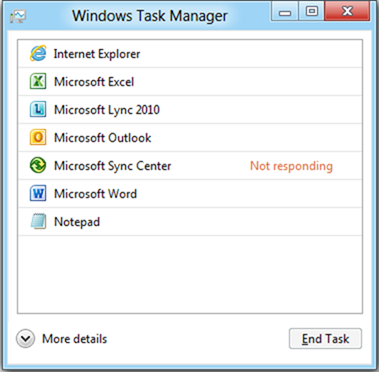
For most users, the result is that Windows 8 won’t inundate you with a long list of unfriendly-looking processes like the task managers in Vista and Windows 7. Instead, the new OS shows a simplified list of programs that you can expand if you need to go beyond simply killing an app.
A Simpler Task Manager

After studying user habits in Windows 7, Microsoft found that 85 percent of all task manager usage centers around the Applications and Processes tabs. This discovery isn’t that surprising since most people use the task manager to simply kill off an application or process that isn’t responding.

Force Quit Dialog in OS X 10.5,
Leopard. Source: Macworld
So instead of seeing a long list of information you don’t need, all you’ll see when you open the Windows 8 task manager for the first time is a simple list of apps. You’ll see no tabs, no menu bar, no statistics — just apps. If a program is having a problem, a “Not Responding” note will appear next to the application name. This approach is similar to Apple’s interface for killing applications in OS X.
Microsoft has simplified the basic task manager so much that you won’t get a double prompt asking you if you’re certain you want to kill a process. If you select the “End Task” button in Windows 8, the operating system will kill the process and the program will be told to shut down. Microsoft warns you to be careful with the new task manager, because Windows 8 won’t prompt you to save your work before shutting something down. More
Labels:
microsoft,
task manager,
tech news,
windows 8,
windows 8 task manager,
windows task manager,
windows utilities
Subscribe to:
Posts (Atom)